



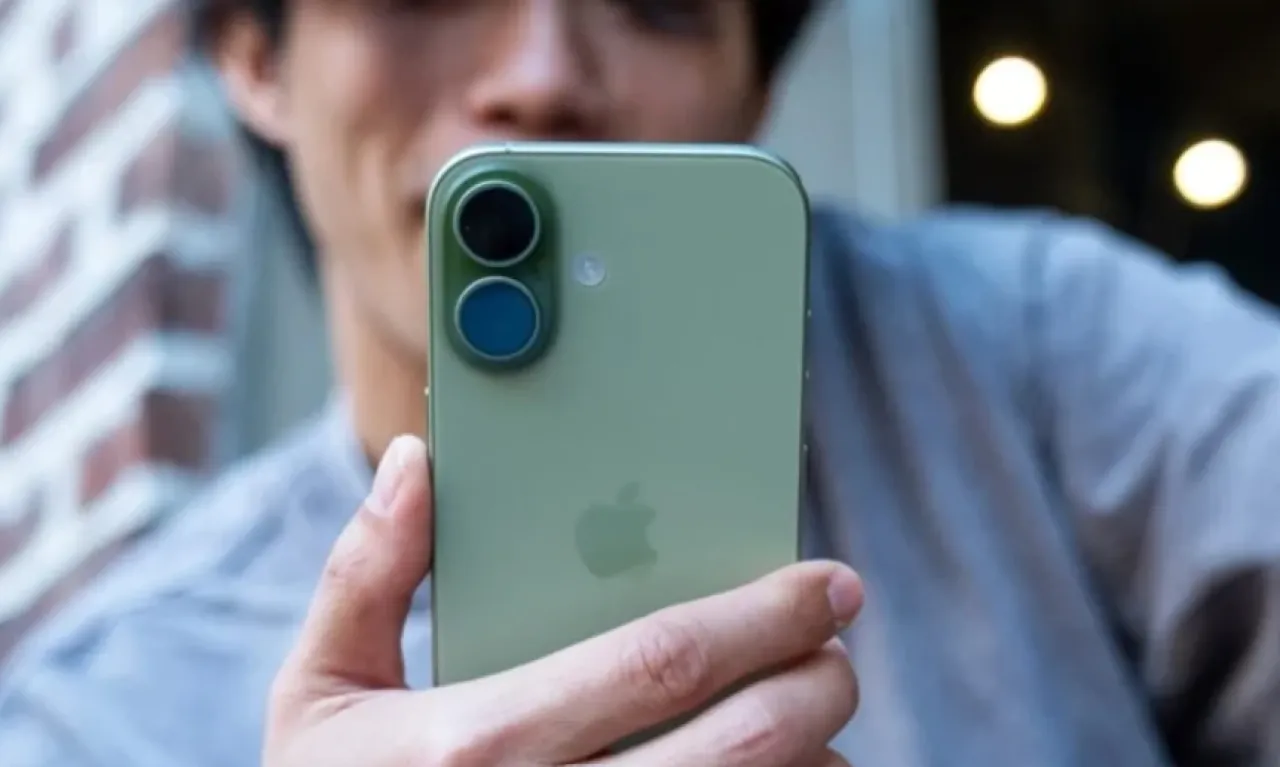
Khaberni- As the time spent by users in front of smartphone screens increases, problems such as eye strain and myopia become more common, especially with prolonged close phone use. To address this issue, Apple provides a smart feature in iPhones known as "Screen Distance" which helps users maintain a safe distance between the phone and their face during use.
This feature relies on notifying the user when the phone is too close to the face for a long period, which helps reduce eye strain and improve daily usage habits.
Why is this feature a game changer?
Many users believe that activating the night mode on the phone is sufficient to protect the eyes since it works to convert screen colors to warmer shades at night, but this feature does not address the fundamental problem of holding the phone too close to the face for long periods.
Here comes the role of the "Screen Distance" feature which monitors the distance between the phone and the user's face using the front camera technology known as "TrueDepth Camera System".
If the phone approaches the face at a distance less than about 30 centimeters for an extended period, an alert appears on the screen saying: "The iPhone may be too close", and the screen remains temporarily blocked until the user moves the phone to a safe distance.
How to activate the "Screen Distance" feature on an iPhone
1- "Screen Time" settings
Go to the settings, then scroll down to the device usage duration option, then press to open the menu for managing phone usage time.
Interestingly, the "Screen Distance" feature is not found under the display settings, but inside the "device usage duration" section, which makes many users overlook it easily.
2- Accessing the "Screen Distance" feature
Inside the device usage duration menu, you will find the "Screen Distance" option near the top of the page, click on it to open the settings related to this feature. When using it for the first time, two explanatory screens will appear explaining how it works and its benefits.
After reading the explanation, click on "Turn on Screen Distance" to activate it.
3- Wait for the warning to appear
After activating the feature, use your phone normally.
When the phone approaches your face at a distance less than the recommended limit, a message will appear on the screen saying: "The iPhone may be too close", at which point simply move the phone slightly away from your face, and a "yes" mark confirms that you have reached a safe distance. After that, you can press "Continue" to resume using the phone.
4- How to disable the feature when needed
Despite its benefits, some users may find the frequent alerts annoying.
In such case, the feature can be easily disabled by going to: (Settings ← Device Usage Time ← Screen Distance then turning off the activation button).
Reactivating the feature at any time can be done using the same steps.
A tip for healthy usage
Experts recommend trying the "Screen Distance" feature for at least a week before thinking about disabling it, as in the first few days the alerts may seem frequent. However, over time the user adapts to the correct distance, which leads to fewer notifications and more comfort for the eyes.