



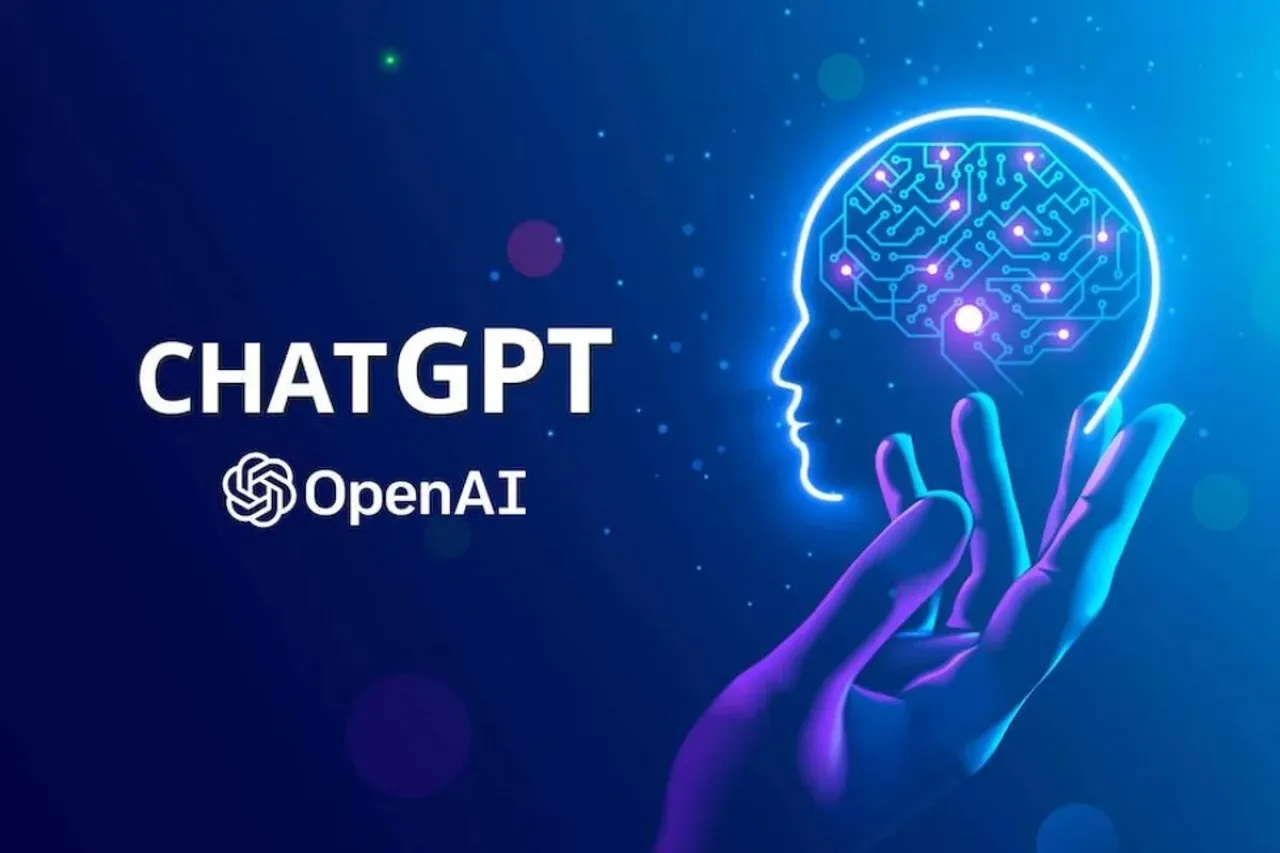
Khaberni - "Chat GPT" is back in the spotlight with a revolutionary feature unknown to many, called "ChatGPT Canvas", a tool that completely changes the way users interact with artificial intelligence, transforming the experience from merely a text chat to a comprehensive interactive workspace that combines writing, editing, and programming in one place.
According to "Thomas Guide", despite more than a year since the launch of "Canvas", the recent updates accompanying the "ChatGPT-5" release and the enhanced memory system have made the tool smarter and smoother, turning it from an experimental feature into a complete production platform that gives users a sense of real collaboration with artificial intelligence, as if it's a colleague who understands their needs moment by moment.
From Chatting to Editing
Users have long complained that any minor text modification in "Chat GPT" leads to a complete rephrasing and loss of original ideas. However, with "Canvas", this has changed completely, allowing for the modification of a specific part of the text or code, while keeping the rest of the content intact.
The tool shows an interface divided between conversation and text, allowing for pasting the paragraph or code you want to edit, highlighting the required segment, and typing a direct directive like: shorten this paragraph, add an enticing introduction, or tone down the colors and adjust the fonts.
With just one click, "Chat GPT" immediately executes the edit on the specified part only, with the ability to review the changes or undo them easily.
A Revolution for Programmers
"Canvas" is no longer exclusive to writers and editors, but has become an indispensable tool for programmers, as it allows you to watch the code change in front of you moment by moment, whether for fixing errors, enhancing performance, or restructuring without the need to copy and paste between windows.
The tool deals with the project as a whole, maintaining the linkage of files and automatically updating names and calls when needed, making it similar to working inside "VS Code" with a professional developer explaining each step.
And you can also ask immediate questions about any code line to see the answer within the same panel.
How to Use "Canvas"?
In the first step: open "Chat GPT" using GPT-5, then select the "Use Canvas" option, then paste your text or code into the panel, then highlight the sentence or paragraph you want to modify.
In the second step: type your directive like: summarize, clarify, change tone, add an example, then review the outcome, and choose to accept or retract.
A Qualitative Leap
One of the biggest drawbacks in previous versions of "Chat GPT" was the excessive rephrasing, but "Canvas" has completely changed the rules; by giving users precise control over text or code while maintaining the original style and idea structure, transforming the experience into a lively and interactive collaboration where the user sees their modifications materialize in real time.
To maximize benefits, consider the following tips:
Start with small steps: modify one paragraph or code snippet at a time to ensure accurate results.
Be specific and clear: use precise commands like make the text friendlier instead of improving it.
Try different tones: formal, marketing, or conversational to discover the best fit for your audience.
Compare versions: use the undo button to review the differences between your version and the AI's version.
Merge conversation and editing: after major modifications, return to the chat to request a comprehensive analysis or improvement of the text.