



Khaberni - Not all iPhone settings are useful in all situations.
While the automatic brightness feature is designed to adjust the screen based on ambient lighting to avoid eye strain, it can often become an obstacle.
At times, sensors might misread the surrounding environment, leading to an unexpected reduction in screen brightness when outdoors or in mixed lighting, according to the technology news site "CNET".
This automatic change can make it difficult to see the screen clearly, and manually increasing the brightness is only a temporary solution before the sensor takes over again automatically.
In 2026, many found that these automatic adjustments hampered rather than enhanced their user experience.
To regain full control over the screen, you need to search in the settings to disable the features causing these continuous changes.
In this report, we will show you two settings you should disable to prevent your iPhone from reducing the screen brightness automatically, knowing that your iPhone might still adjust the screen brightness automatically even after disabling these two settings.
It might seem obvious, but the first thing you should do is make sure to disable the automatic brightness in the settings.
This feature is quite clear, as it automatically adjusts the screen brightness based on the ambient light.
If you want to prevent the screen from trying to adjust automatically continuously, you should disable this feature.
To do this on an iPhone, go to the settings app, navigate to Accessibility, then Display & Text Size, and disable the automatic brightness feature at the bottom of the page.
You might expect to find this setting under Accessibility, so it is common for the automatic brightness feature to be enabled without your knowledge, as it's located under Accessibility.
If the brightness of your screen continues to adjust automatically, there is another setting you need to deactivate.
If you have an iPhone SE (second generation) or later, the True Tone feature measures the color temperature and screen brightness of your environment, then adjusts the screen to match it.
The True Tone feature is beneficial when needed; it not only helps in displaying more accurate colors in various lighting conditions, but it also eases your eyes, which is crucial if you frequently read on your phone.
Again, if you're not interested in this feature, or don't use it, or are annoyed by the brightness adjusting automatically continuously, you should disable it.
In Settings, go to Display & Brightness, then turn off True Tone under the Brightness section.
As long as automatic brightness is also disabled, turning off True Tone will prevent your iPhone from adjusting the brightness automatically.
Despite the aforementioned measures, there is another exceptional case leading to automatic screen brightness reduction.
Your iPhone has several ways to protect its internal components, including automatically reducing the screen brightness.
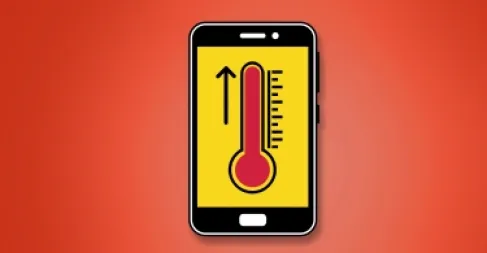
Even if you have turned off both the automatic brightness and True Tone features, your iPhone will automatically adjust the screen brightness in case of overheating.
According to Apple's official website, to help prevent this, you should use your iPhone in temperatures ranging between 0 and 35 degrees Celsius (32 to 95 degrees Fahrenheit), and store it at temperatures ranging between -20 and 45 degrees Celsius (4 to 113 degrees Fahrenheit).
If you leave your iPhone in your car or on the pavement on a hot day, or even try to use it next to a swimming pool or on the beach on a hot day, there is a high chance that it will overheat and cause an automatic reduction in screen brightness.