



Khaberni - If you own a modern Apple device, you can now translate conversations in real-time through your headphones from and to any other language.
The "Live Translation" feature, unveiled by Apple in conjunction with their announcement of the "AirPods Pro 3" last year, has become a reality, even recently joined by the latest 2026 release of the "AirPods Pro Max," according to "Wired" magazine.
The feature evokes the idea of the famous "Babel Fish" from the novel "The Hitchhiker's Guide to the Galaxy," which provides immediate translation between languages once placed in the ear, but the difference here is that the alternative is not a fictional creature, but wireless earbuds from Apple performing almost the same task.
Compatible Devices
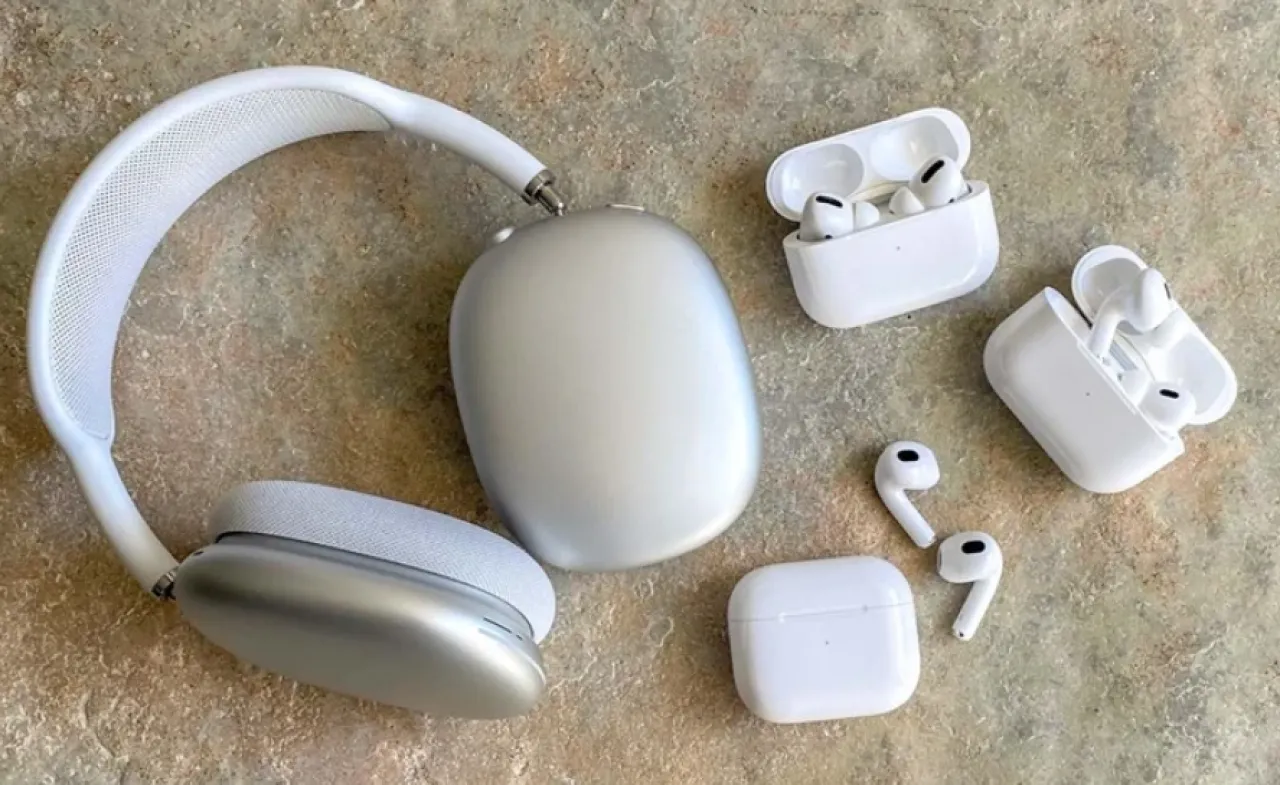
Although the release of the feature is linked to the latest editions, it is not limited to "AirPods Pro 3" only, but also works with "AirPods 4" which are equipped with active noise cancellation and "AirPods Pro 2," "AirPods Pro 3," as well as "AirPods Pro Max" 2026 edition.
However, the original version of "Pro Max" is not supported, and at the phone level, Apple requires the use of "iPhone 15 Pro" or "iPhone 15 Pro Max," or any of the "iPhone 16," and "iPhone 17" models. Also, the latest version of iOS 26 must be installed.
With these requirements met, your phone and headphones transform into an instant translator in your ears, whether during "FaceTime" video calls or while traveling to foreign countries, making it easier to understand others and communicate smoothly.
Setting Up the "Live Translation" Feature
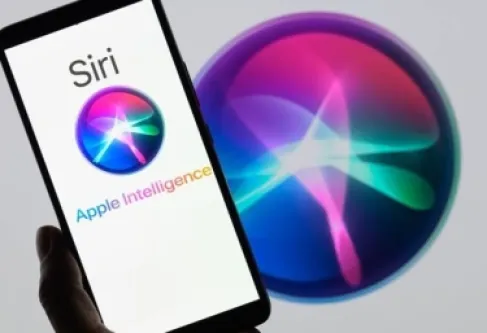
The feature depends on the "Apple Intelligence" system, so you should first ensure that artificial intelligence capabilities are activated on the phone, which can be done by:
- Entering the settings in iOS
- Clicking on Apple Intelligence & Siri
- Ensuring that the Apple Intelligence option is activated
- After that, you must choose the required languages, whether the language you are translating from or to, and preload them to ensure the feature works without obstacles.
- Assuming that the "AirPods" are already connected to the phone: insert the headphones in your ears, go to the settings in iOS, and select the name of the headphones.
- Then press on "Languages" to download the languages you need.
From its side, Apple assures that all translation processing is done locally on the phone, without sending the conversations to the company's servers, which explains the need for modern devices capable of executing the processing directly on the device.
How to Use "Live Translation"?
After completing the settings, the feature can be activated in several ways:
- Open the Apple Translate app
- Click on the "Live" button at the bottom of the screen
- Choose the appropriate languages
- Then press "Start the conversation"
If you are using the smaller "AirPods," you can long-press both earbuds at the same time to activate the translation.
The feature can also be activated through voice commands by saying: "Siri, start the live translation."
Swift access to the translation app is possible via the control center, or by customizing the "Action Button" on the phone to activate the translation directly through the settings.
Translation Mechanism
When the other party speaks, you will hear the translation directly in your ears in your chosen language.
When you speak, your words are translated in the opposite direction, and the translated text can be displayed on the phone's screen under the "Live" tab in the app, or the translation can be played audibly through the phone's speakers by pressing the play button.
To stop the feature, simply press the "X" button displayed on the screen.
Warning from Apple
Apple notes that translations based on artificial intelligence can sometimes be "inaccurate or unexpected, or even offensive," meaning that some phrases may not be communicated with complete accuracy.
Therefore, if your interlocutor seems confused or shocked, it might be due to a flaw in the automatic translation.