



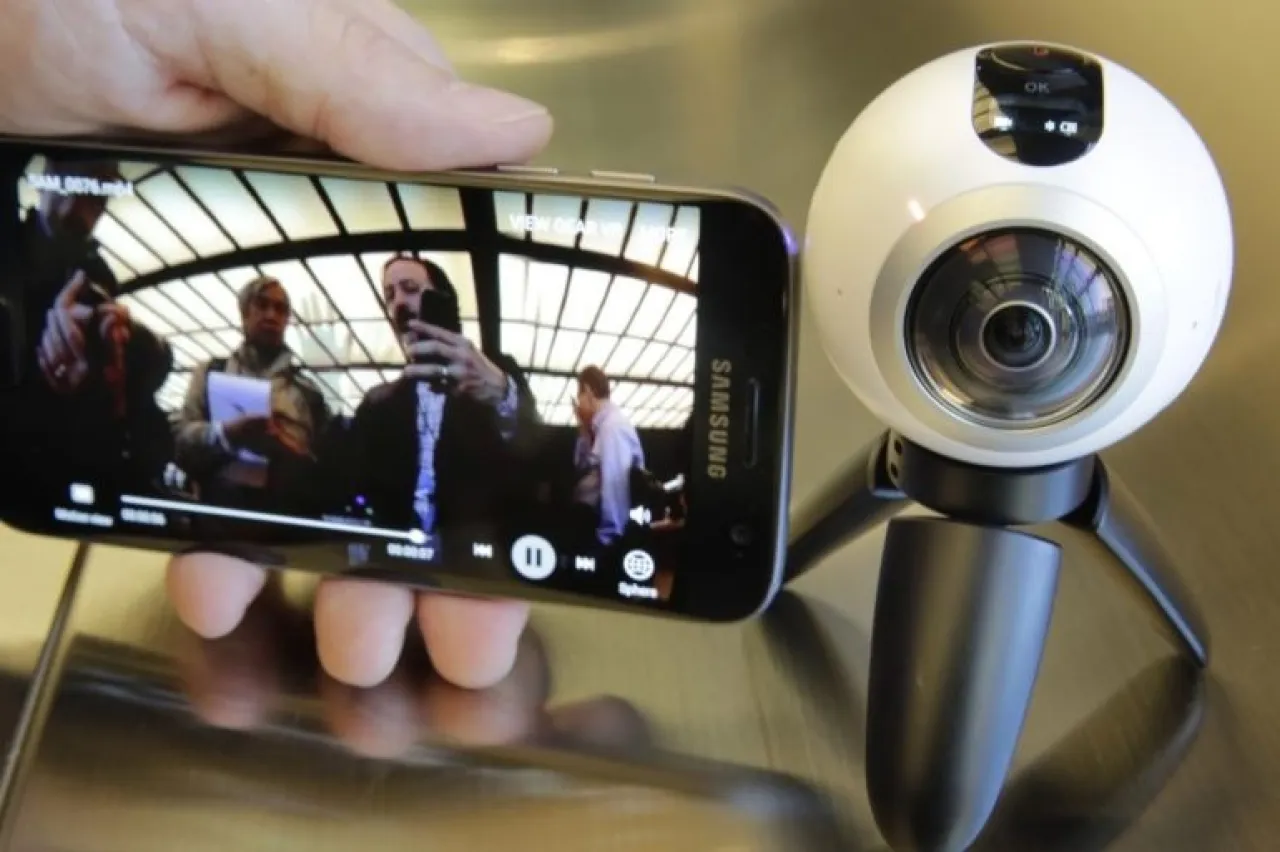
Many rely on laptop cameras for video meetings or for logging in through facial recognition systems, but only a few realize that the smartphone camera - whether front or back - can easily be transformed into a high-quality webcam that works with laptops running "Windows" and "Mac", serving as a practical alternative to the built-in cameras of modest quality.
According to the technology-focused "Computer World" website, front cameras have become a fundamental part of the design of modern laptops, used in biometric security systems like "Windows Hello," in addition to their role in remote meetings and work. However, despite their varied uses, these cameras often offer low imaging quality, except for some high-end models that provide relatively acceptable performance.
Despite the significant advancements in the market for external webcams, capable of shooting at resolutions up to "4 thousand pixels" (4K), their adoption remains limited. This is mostly due to the extra effort of connecting and transporting these cameras, which many users prefer to avoid, especially since those needing better quality in video meetings sometimes opt to use tablets and benefit from their advanced front cameras.
From here, the use of the smartphone camera emerges as a practical and flexible solution that leverages the high imaging quality offered by modern phones without the need to purchase additional accessories. There are several ways to achieve this, varying by the operating systems of the phone and computer, yet the most prominent ones are now accessible and easy to execute.
Using an Android phone camera with Windows 11 computers
In "Windows 11", Microsoft has supported the direct integration with "Android" phones since the system's launch, as part of a feature system aimed at providing an integrated experience similar to what "Apple" offers among its devices. Among these features is the possibility to use the phone's camera instead of the computer's camera, an option that significantly improves imaging quality during video meetings.
To activate this feature, according to "Computer World", the user needs to install the "Link to Windows" app on the phone, then connect it to the computer through the directions displayed on the screen.
After completing the connection, one can head to the system settings in "Windows", then to the Bluetooth section, choose the mobile phone and activate the "Use as a connected camera" option. After this, the use of the phone camera becomes automatic, as the system notifies the user when opening any application that needs a camera, with the ability to manipulate it directly from within "Windows".
"Pixel" phones from "Google" offer an even simpler additional option, allowing the use of the phone as a webcam directly by connecting it to the computer using a "USB" (USB) cable, and selecting the "Use as webcam" option without needing complex settings.
Using an iPhone as a webcam with Windows 11
As for iPhone users wanting to use it as a webcam with "Windows 11", they have a range of external apps that enable this. These apps vary in terms of features, between free and paid, with "DroidCam" being one of the most popular options.
"Computer World" says that the app provides a free version allowing standard resolution usage, while the paid version, priced at about 15 dollars - paid once - offers higher resolution usage with the watermark removed. The app relies on a straightforward mechanism, requiring installation of the phone version and the computer version, then following the instructions to complete the connection.
In Apple’s environment, iPhone and Mac users enjoy a smoother experience, thanks to deep integration features between company devices. Here, no external apps are required, according to "Computer World", as the feature can be used directly if both the phone and computer support the latest updates, and are operating under the same account on "iCloud". Once the feature is activated, an automatic option allows the use of the phone's camera with the computer, and if it does not appear, just checking the settings and user account is enough to make the feature work without complications.
When using "Android" phones with "Mac" computers, the mechanism is not much different from using them with "Windows", as it depends on external applications. You can employ the "DroidCam" app in its version for "Mac" to use the camera wirelessly, or resort to the "NDI HX" app for a wired connection. "NDI HX" is among the popular apps available for free for "Mac" computers, while its version for "Android" phones requires a paid subscription.
With these various methods, the smartphone transforms into a practical tool that provides the user with higher imaging quality and greater flexibility, and spares them from relying on the built-in computer cameras, or buying additional accessories that might be used rarely.