



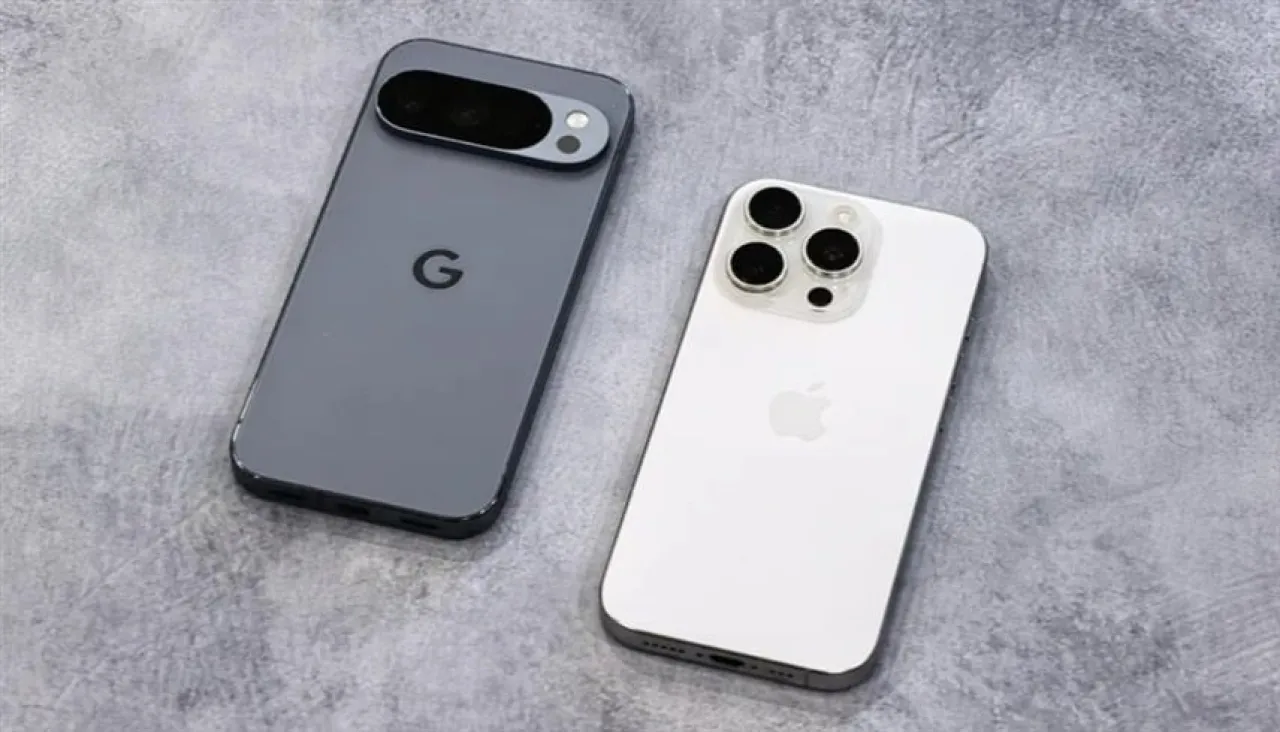
Khaberni - File sharing between Android phones and iPhones has been one of the most irritating points of contention between the systems for many years.
Despite some recent openness by Apple, such as supporting the "RCS" protocol in messages, sharing photos, PDF files, and videos between the systems remains a daunting task, only possible through roundabout solutions like cloud storage, messaging apps, or external storage devices.
However, this reality is beginning to change, as Google has succeeded in a notable step by supporting sending and receiving files using "AirDrop" through the "Quick Share" feature on "Pixel 10" phones, opening the door for the first time to direct and smooth sharing between "Pixel" and "iPhone".
According to "Thomas Guide", this can be done through the following steps:
Firstly: How to send files from Pixel 10 to "iPhone"
1- Update the "Quick Share" add-on:
Google announced support for "AirDrop" within "Quick Share" last November, but the feature may not be automatically enabled on your device. To activate it, go to "Google Play Store", search for "Quick Share" then click on update.
2- Restart the device: After updating, press both the "volume up + side button", and choose to restart.
3- Select the files to be shared:
Open the app that contains the files (like Google Photos), and select the photos, videos, or files you want to share.
4- Click on share: Press the share icon in the app.
5- Select Quick Share:
From the share menu, choose "Quick Share", and ensure your phone is visible to all devices.
6- Make your "iPhone" visible to everyone via "AirDrop": On your "iPhone", open the control center, long-press the "AirDrop" icon, and choose everyone for 10 minutes.
7- Select your "iPhone" on Pixel: Your "iPhone" will appear among the nearby devices on "Pixel", press on the device name, and agree to receive on the "iPhone" screen, then the file transfer begins immediately.
Secondly: How to receive files from "iPhone" to "Pixel 10":
1- Update the Quick Share add-on: Ensure the latest version of "Quick Share" add-on is installed via "Play Store."
2 - Select the files on your "iPhone", open the Photos app or any other app, and select the photos, videos, or files.
3- Click on the share button: Press "share" on "iPhone".
4- Select "AirDrop" from the share menu.
5- Make sure that the "Pixel 10" device is visible to all nearby devices: Swipe down to open quick settings, long-press on the Quick Share square, and choose everyone for 10 minutes.
6- Select "Pixel 10" on "iPhone" which will appear among devices on "AirDrop", and press it to start the sending.
7- Accept the file on "Pixel 10" device, by pressing "OK".
8- Open the file on "Pixel 10" device, by opening Google Photos app, go to albums and choose the Quick Share folder.
It is noted that this feature is currently only available on Pixel 10 devices and does not work on other Android phones, including Google's own Pixel 9 series. It has not yet been announced whether it will be available on older models, but we hope so.