




Khaberni - Android phones, even the most powerful, suffer from battery depletion before the end of the day, especially with intensive use that includes streaming music and video over 5G networks, and ultra-bright screens with high refresh rates of 120Hz, in addition to a full day of scrolling or "working" on applications.
Although fast charging technology has become a practical solution, the continuous reliance on portable chargers or frequent monitoring of the battery percentage indicates an urgent need to adjust settings, according to what was published on "Thomas Guide".
Modern Android versions give users significant control over how apps run in the background, managing screen power consumption, and scheduling extra features like "5G or Always-On Display".
Using a few features with some simple habits can comfortably extend battery life until the end of the day without needing to disable the phone or reduce its usefulness, as follows:
1- Activate "Adaptive Battery"
This feature serves as the "brain" that manages phone energy.
Modern Android phones use "Adaptive Battery" to recognize the most used apps and quietly restrict others, typically enabled by default on "Pixel" and Samsung, Galaxy, and most flagship devices.
While phones with powerful batteries like "Galaxy Ultra S25", "OnePlus 15", and "Motorola Razr Ultra" perform well, the adaptive battery system remains useful before resorting to manually closing apps, so it's important:
Go to: Settings > Battery > Adaptive Battery and make sure it’s enabled.
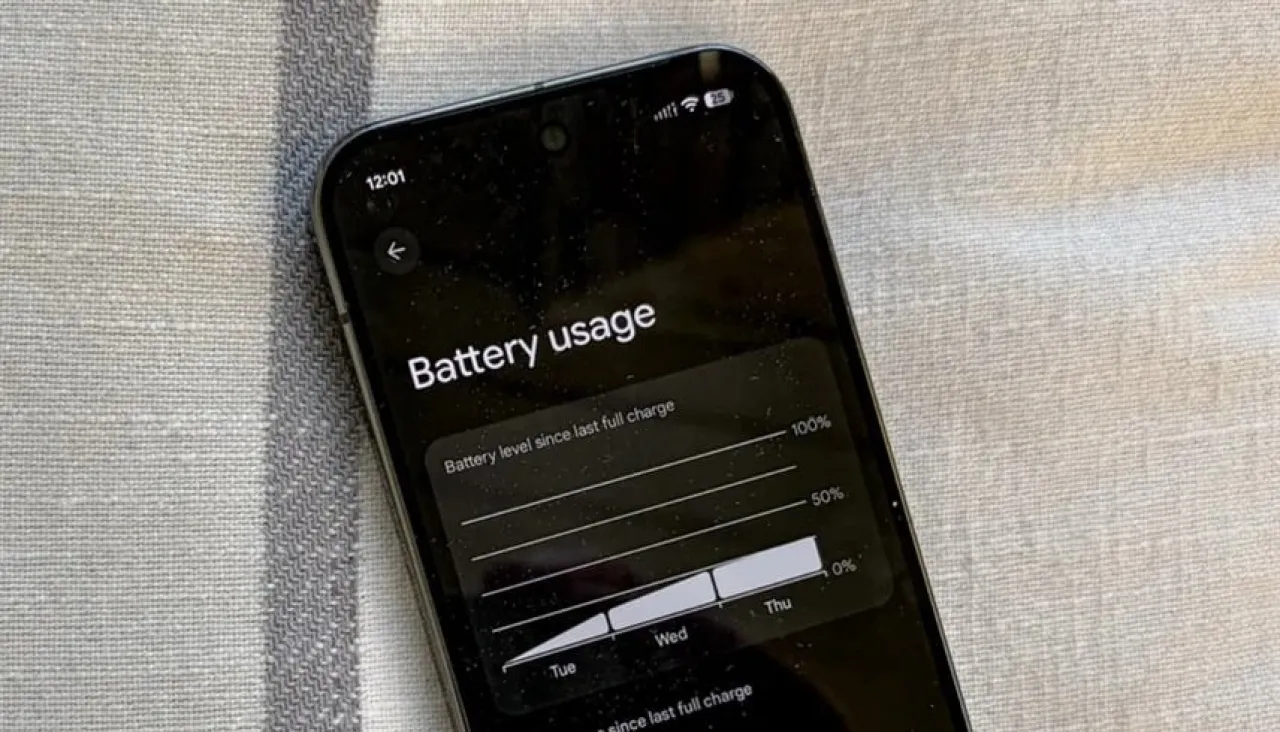
Check the battery usage screen to see the most consuming apps.
Change settings of less-used apps to: "Optimized" or "Restricted".
Put them in sleep or deep sleep mode on Samsung phones.
It is advisable not to restrict sensitive apps such as messaging, maps, or banks to avoid missing alerts or urgent updates.
2- Adjust the refresh rate, brightness, and screen timeout
The screen is the most power-consuming element, where a high refresh rate (120 or 144Hz) provides smoother performance but increases battery consumption.
In this regard, modern phones offer an adaptive mode that lowers the refresh rate while reading content and increases it when scrolling or playing. If your phone does not support adaptive mode, consider switching to "60 Hz" on days when you need more power, especially while traveling.
As for brightness, it's preferable to use "Adaptive Brightness" to adjust the phone's light level according to the surrounding environment. It's also recommended to reduce the screen timeout to 30 seconds or a minute to prevent the screen from staying lit unnecessarily.
Android versions also feature "Adaptive Screen Timeout" which reduces lighting duration when no activity is detected.
3- Lock screen alerts "Always-On Display"
While the "Always-On Display" feature seems unaffected, it consumes noticeable power during idle periods.
Experiments show that enabling it on OLED screens leads to higher drainage compared to turning it off, so it is important in "Pixel" devices, adjust the setting within "Display & Touch", and in Samsung devices set it within "Lock Screen and"AOD".
Turning off "AOD" completely is an effective option, with relying on "tap to wake" or "lift to wake" to light the screen only when needed.
It is advisable to review the list of apps allowed to wake the lock screen or display full notifications, as reducing them prevents frequent screen lighting and saves energy throughout the day.
4- Control location services and connection options
Location services and connection options are major sources of battery drain.
Android phones allow giving apps one of three permissions: "Allow all the time", "Allow only while using", and "Ask every time".
It is preferable to reduce location access for most apps via: Settings > Location > App permissions.
Turning off precise location for apps that don't need GPS accuracy and settling for approximate location via "Wi-Fi" or the network is possible. Connection technologies like "Bluetooth and Wi-Fi scanning" might remain active in the background even when their main switches are off, so it's advised to turn off scanning options if not needed.
5- Battery saver mode and extreme power saving
Most Android devices include a standard battery saver mode that reduces background activity and lightens graphical effects and may slightly restrict processor performance.
Therefore, it's preferable to set the battery saver mode to automatically activate at 15% – 20% and manually enable it when anticipating a long day without charging.
"Pixel" devices offer a stronger mode called "Extreme Battery Saver," which temporarily stops most apps except for calls, messages, and some essential apps. Many other companies have also adopted this option.
Battery health-preserving settings are also available, such as limiting charging to 80% – 85% or activating "smart charging" to prevent the phone from staying at 100% throughout the night.
What else can you do to extend your phone's battery life?
Even with the ideal settings, some habits can significantly improve performance, such as:
1- Deleting apps you haven't used for months.
2- Avoid running the hotspot for long hours.
3- Avoid combining maximum brightness, a "5G" network, and long gaming sessions unless near a charger.
If the phone continues to run out quickly despite all steps, this may indicate a weakening of the battery itself.
Some Android phones provide information about battery health in settings, while maintenance centers can check their capacity more accurately.